


STEP #1:
Install WordPress on your domain
STEP #2:
Install these two plugins to your WP site from Plugins -> Add New -> Upload.
All In One WP Migration Plugin
All In One WP Migration File Extension.
STEP #3:
Activate both of those plugins.
STEP #4:
On your WP site dashboard, visit All-In-One WP Migration menu -> Import
STEP #5:
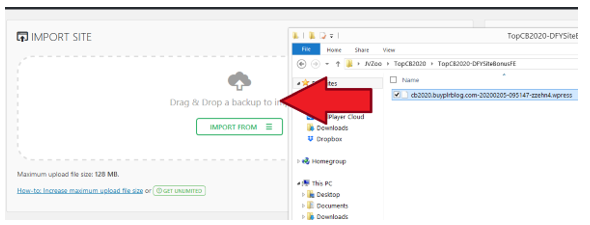
Import the medicalnews .wpress file from your purchase file to your WP site (drag the file to the upload section)
STEP 6:
Click Proceed until the import and file installation finish.
STEP #7:
Once the file installation is completed, visit any link on your WP Admin dashboard. You will then be asked to relogin.
STEP 8:
To relogin, use these credentials -> Username: medicalnews Password: medicalnews2021
STEP 9:
Installation is completed! Now you can customize the site.
STEP #1 :
*IMPORTANT* Go to Users menu -> Your Profile. Then change the default WP email address to your own email address.
After that visit your email inbox and confirm your email.
STEP #2:
*IMPORTANT* Go to Settings menu -> General. Then change the default WP email address to your own email address.
After that visit your email inbox and confirm your email.
STEP #3:
Visit Settings -> WP QuickAzon menu.
STEP #4:
On the WP QuickAzon setting page, replace the default Amazon tag ID with your own Amazon affiliate tag ID.
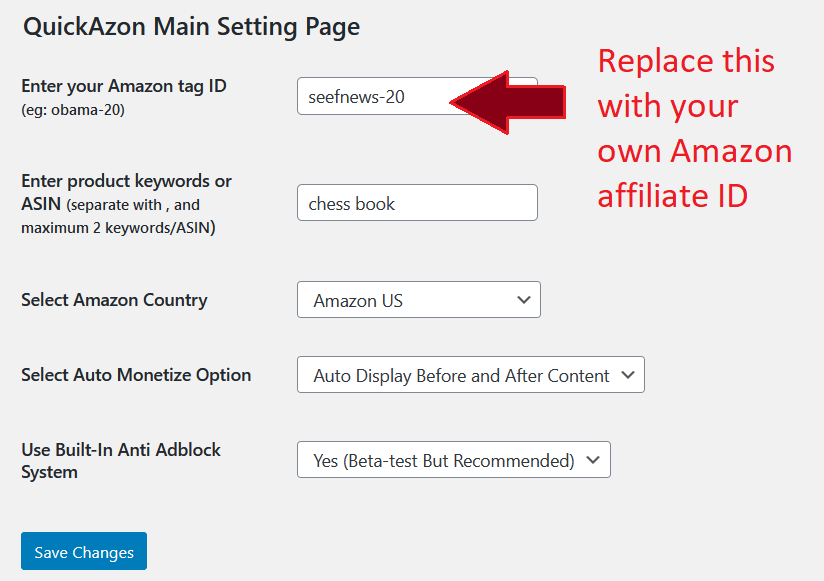
Then hit Save Changes.
Activating The Automated Content Module
STEP #1:
Visit WP Automatic menu -> Settings.
STEP #2:
Locate the Ads Settings, and find this code: amzn_assoc_tracking_id = “yourid-20”;
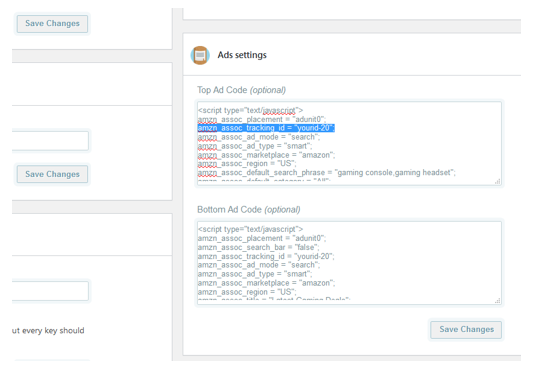
Replace yourid-20 with your own Amazon associate ID, both for the Top Ad Code and Bottom Ad Code.
Then hit Save Changes.
STEP #3:
Visit WP Automatic menu -> All Campaigns.
STEP #4:
Edit all campaigns (click Edit), then set it to Publish.

Question:
After installation, my website doesn’t have featured post on the homepage?
Answer:
Head over to Post -> All Post. Edit the post you want to be featured, then select the “Featured This Post on Homepage” option. Then go to Appearance -> Customize, then enable the “Display featured content on homepage” option.
Question:
After installation, my WP posts and page returns 404?
Answer:
If this problem comes, visit Appearance -> Permalinks. Then select “Month and Name” on the Permalink Settings, after that click Save Changes.
Question:
I want to change site logo, colors, etc?
Answer:
Simple! Visit Appearance menu -> Theme Options. Then you can change site logo, customize the site options, colors and many more.
Question:
How to add Advertisement on Header?
From WP Admin visit Appearance menu -> Widgets-> Header Advertisement and >> Add Widget. Then visit Appearance menu -> Customize, select Widgets -> Header Advertisement -> then add your banner/advertisement on the field.
 [/text_block]
 [/text_block]
 [/text_block]

Leo (WpThemePlugin.com)[/text_block]
Why?
First, because for this website we want to build authority niche site, not an auto-content site.
Second, most articles from ANY automated/autorewriter plugin are less readable.
Third, buyers at Flippa or other website flipping marketplace tend to not liking websites built with autocontent/autorewriter plugin.
Nevertheless, autocontent plugin can be really helpful to build profitable niche sites in the hands of advanced users.
So below I make a guide on how to use WP Automatic plugin so your WP Chess Website can autopost content every day on autopilot.
BEWARE: FOLLOW THE GUIDE BELOW AT YOUR OWN RISK. I ONLY PUT THIS GUIDE AS AN UNADVERTISED BONUS, ANY FAIL ATTEMPT DUE TO FOLLOWING THE GUIDE BELOW WILL NOT BE COVERED BY OUR 30 DAYS MONEY BACK GUARANTEE – USE AT YOUR OWN RISK!
DOWNLOAD THE GUIDE HERE[/text_block]