
[/text_block]


STEP #1:
Install WordPress on your domain & hosting.
STEP #2:
Once you have a WordPress site installed, login to the WP admin then navigate to Plugins -> Add New -> Upload. After that install these two plugins:
All In One WP Migration Plugin
All In One WP Migration File Extension.
STEP #3:
Activate both of those plugins.
STEP #4:
On your WP site dashboard, visit All-In-One WP Migration menu -> Import
STEP #5:
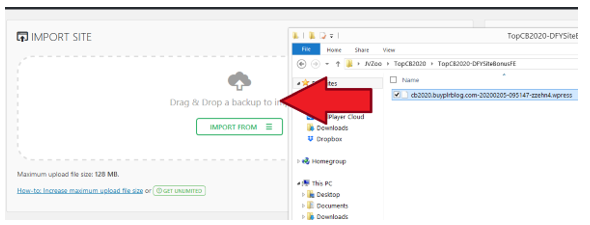
Import the .wpress file to your WP site (drag the file to the upload section)
STEP 6:
Click Proceed until the import and file installation finish.
STEP #7:
Once the file installation is completed, visit any link on your WP Admin dashboard. You will then be asked to relogin.
STEP 8:
To relogin, use these credentials -> Username: wp4crypto Password: wp4cryptosite
STEP 9:
Installation is completed! Now you can customize the site, click the Tab #2 above.
UPDATE WP ADMIN EMAIL
1.) Go to Users menu -> Your Profile. Then change the default WP email address to your own email address.
After that visit your email inbox and confirm your email.
2.) Go to Settings menu -> General. Then change the default WP email address to your own email address.
After that visit your email inbox and confirm your email.
ACTIVATING AUTO-CONTENT POSTER
1.) From WP Admin Dashboard, navigate to WP Automatic -> All Campaigns.
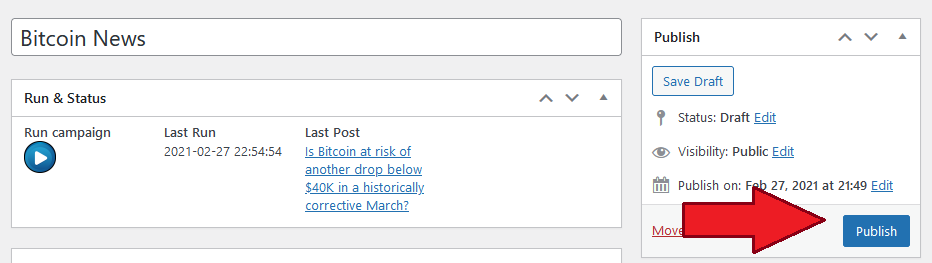
2.) Click any Campaigns that still in Draft mode.

3.) Then set it to Publish.
UPDATE AMAZON AFFILIATE ID
1.) Navigate to Automatic menu -> Settings.
2.) On the Ads Setting section, replace the default Amazon ID with your own Amazon affiliate ID:

3.) Click the SAVE Changes button
UPDATE WP PERMALINKS
1.) From WP Dashboard visit Settings menu -> Permalinks
2.) Click the Save Changes button
3.) DONE
HOMEPAGE FEATURED POST SECTION
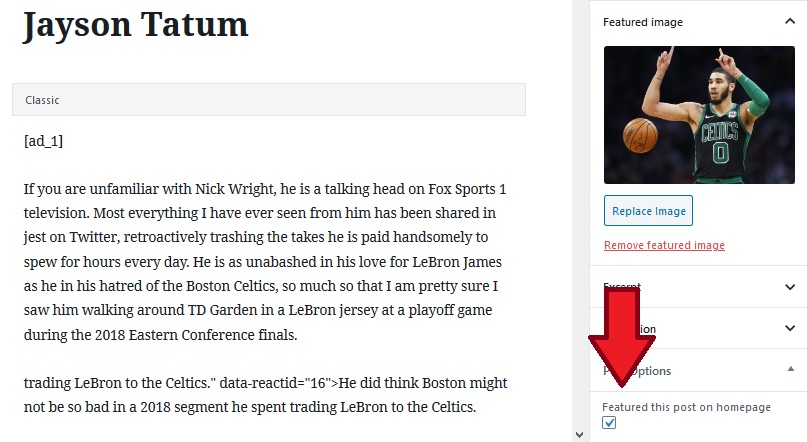
Head over to Posts -> All Posts, then edit any post that you want to be featured on the homepage. Then enable the “Featured this post on homepage” options:
CREATE YOUR AFFILIATE ACCOUNT
To monetize your website with Crypto transaction, we’re gonna use Changelly affiliate program. Here is the sign up link: https://changelly.com/earn/
After you have created an account at Changelly, you will have a unique affiliate ID which can be found from this URL: https://changelly.com/earn/tools/affiliate-link

Save or remember your affiliate ID, you’re going to use it later.
ADD YOUR AFFILIATE ID
1.) From WP Admin dashboard, navigate to Settings menu -> Cryptoffiliate.
2.) Then add your Changelly referral/affiliate ID there. And Click Save Changes.
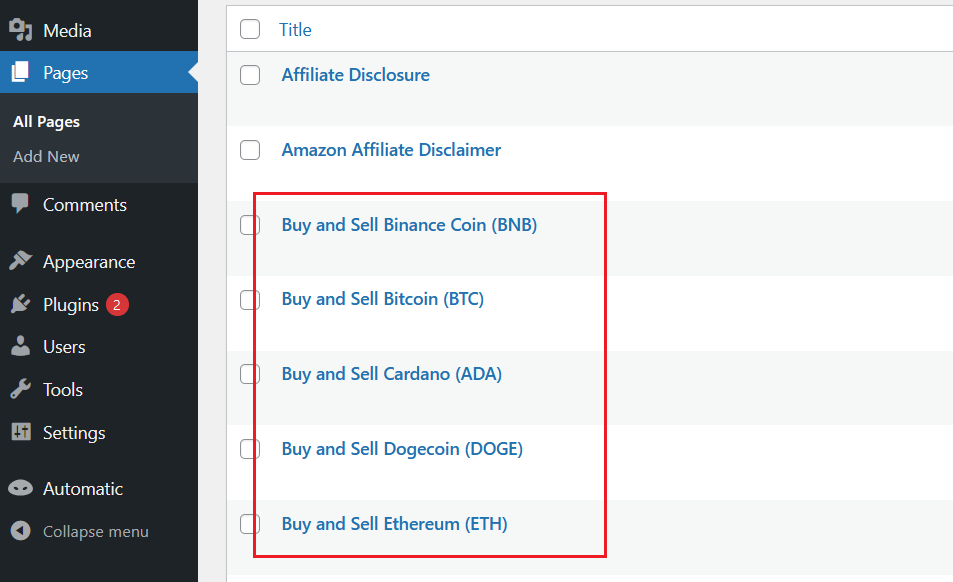
Now that you have add your affiliate ID, visit Pages -> All Pages.
All the Buy & Sell crypto pages will now be monetized with your affiliate link!
As part of your purchase, there are 3 extra bonus included. Download them below!
Download Crypto PLR Article Package Here
 [/text_block]

Leo (WpThemePlugin.com)[/text_block]